Set up Minio credentials
-
Access MinIO Console
Open the IDOML platform dashboard and navigate to the MinIO console. Log in to the MinIO console with your user account.
-
Navigate to Users access keys management
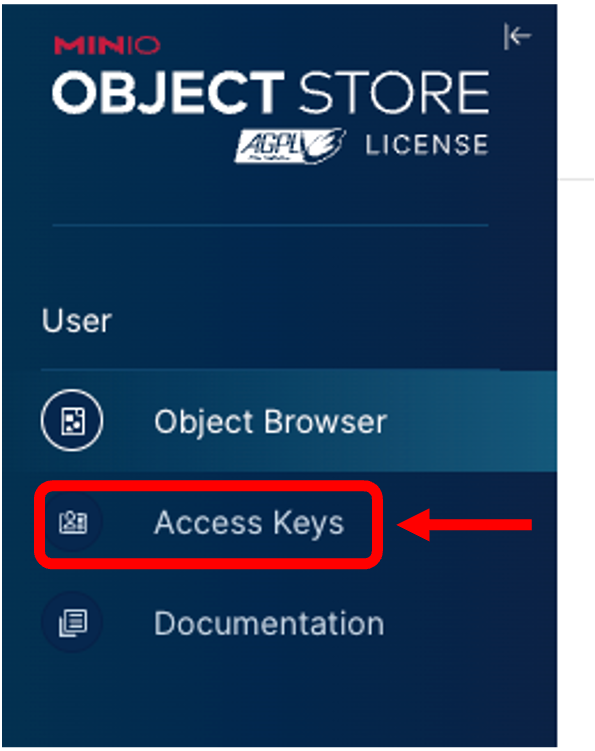
On the top left corner of the MinIO console, you should see a menu icon. Click on it to expand the menu options. Navigate to the "User" and "Access Keys" section.
-
Generate Access and Secret Keys
On the top right corner of the "User" and "Access Keys" section, you should see a "Create access key" button. Click on it to generate the access and secret keys for the user.
-
Set up expiry date and access policy (Optional)
You can set an expiry date for the access keys and define the access policy for the user. The access policy allows you to define the permissions for the user, such as read-only or read-write access to the MinIO storage.
-
Save the access and secret keys
Once you have generated the access and secret keys, save them in a secure location.
-
Test the credentials
Now that you've created the user and obtained the access and secret keys, you can test these credentials to ensure they work as expected. You can use various MinIO client libraries, command-line tools, or SDKs to interact with MinIO using the newly created credentials.